Category: Gemini

  • A Quick Pixel Watch 4 Review

    A Quick Pixel Watch 4 Review

    I wish I could say owning a Pixel watch is frustration free. It’s not. The Pixel Watch 4 is the second one I’ve owned, and while it functions correctly most of the time, there are many times it doesn’t wake when I raise my wrist, or I tell it, “Hey Google,” and it just sits there. And when it does respond with “Hi Gary” it often does absolutely nothing after telling it to. Or, both it and my phone, which might be in my pocket at the time, respond at the same exact time.

    Which is why I’m getting rid of it.

    I can’t say I won’t miss it, because I might. It does a great job of showing me notifications, new e-mail, what the temp is, and more, but I find it increasingly flakey, and that makes it hard to love. I want a watch that is reliable, not something I’d afraid will lose whatever valuable information I have to share with it.

    The Pixel Watch 4 is comfortable enough, its battery lasts a couple of days at a time, and it fulfills most of the functions a watch should. But it seems half-baked. Like Google is not really serious about its watches. Like they’re experiments, not real hardware.

    Which is why I’m switching to the Pebble Time 2, a color watch whose battery should last a week. It might be less smart, but I hope that translates into it being more reliable.

    Time will tell.

  • Samsung Z-Fold 8 Ultra Review

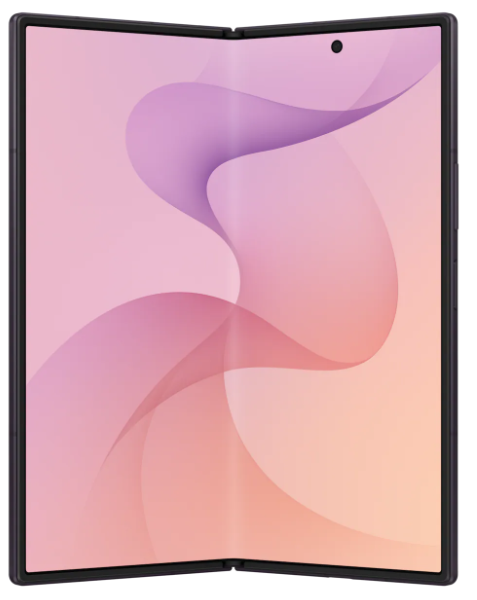
    Samsung Z-Fold 8 Ultra Review

    Introduction

    When the Samsung Galaxy Z-Fold, released in September 2019, came on the market, I was intrigued. But even before it reached store shelves, the press quickly found major issues, and while it found buyers, it was not a great start to a new paradigm in smart phones.

    It was also expensive at approximately $2000 US!

    Samsung quickly iterated on the design, and version 2, which followed in September 2020, was a much more solid design. It was just as expensive, but fixed quite a few of the flaws of the original.

    Eight years later we have the Galaxy Z-Fold 8 ($1900 US) and Z-Fold 8 Ultra ($2100 US). These are just as or even more expensive, but much more mature. 

    I finally decided to take the plunge: I bought the Galaxy Z-Fold 8 Ultra. I chose the Ultra over the base Fold because I wanted as slim a fold as I could find, one which would slip into my pocket easily. 

    The Bad

    I only have a single complaint and that is the power button, which is used to wake the phone, and also has the fingerprint sensor, is tiny and hard to find.This is especially true when the phone is closed and I’m in a hurry.

    It’s not an impossible situation, of course, and I’m getting used to it, but it’s odd Samsung decided to use such a small button for such an important task. This button is not only used to power on the phone, but also to wake it, sign in, and when double-clicked, to open the camera application. If you long press it, it brings up the digital assistant (Gemini AI), and when used in combination with the volume down button, it takes a screenshot.

    The Good

    Battery Life

    Phone battery life is one of those things that makes no sense to me. The last two I had, both Pixel phones, lasted two entire days on a single charge when I first got them. Within a couple of months, that changed to a day plus.

    So far the battery life of the Z-Fold 8 Ultra has been excellent. It typically exceeds two entire days. Note that this is with the phone mostly closed.

    Why is it mostly closed? 

    Multitasking

    When open, the Z-Fold 8 Ultra is exceptional at multitasking. If I need to use two apps simultaneously, it handles the scenario effortlessly. Typically this is an app that requires multi-factor authentication and my MFA app. I open them side-by-side or one on top, the other on the bottom.

    I do this often, but not constantly, and part of the reason is because the phone is only so big. It’s roughly the size of an iPad Mini, which is 195.4 x 134.8 mm or 7.69 x 5.31 inches. The Z-Fold 8 Ultra is 158.4 x 143.2 mm or 6.24 x 5.64 inches.

    This is almost twice as big as a typical large phone screen, but tiny compared to a 13-inch laptop. I personally find that size of laptop screen too small to tile two large windows side-by-side. For example, if I want to open a banking app and Excel on that size of laptop, I switch between them instead. The screen size isn’t big enough in my opinion to handle that particular scenario.

    Other Reasons to Open Up

    There are other reasons to open the phone, like to watch a video, something I don’t do very often. I prefer that on a much larger screen, like on a computer or TV. Reading is another good reason, or viewing and editing photos. Taking notes. And there are a myriad other reasons to unfold the Z-Fold.

    The Crease

    When I open the Z-Fold 8 Ultra and look for the crease, it’s there. I can see it if I strain my eyes enough, but only in bright light. 

    Is it a big deal? No. Does it matter to me? Not at all.

    Fact is, the crease is meaningless unless for some reason you focus on it and it bothers you. 

    The Camera

    I used to have unrealistic expectations for the cameras built into my phones. I bought a previous Samsung Galaxy phone because it had a 10X optical zoom lens, but I didn’t use the zoom that much. Fact is, I mostly take pictures of my dogs, clouds, flowers, and people.

    I don’t need a long zoom and the Z-Fold 8 Ultra so far has taken photos every bit as good or better than any previous phone I’ve owned, including Pixels made by Google.

    Conclusions

    For me, a phone is all about the ability to use apps that help me manage my life. That includes being able to keep in touch with loved ones, keep an eye on my job, take and edit photos, take notes, manage my finances, shop, and use AI for questions.

    How does the Z-Fold 8 Ultra handle these tasks? It handles them well, and it excels in many ways, because when I open it, I have a larger canvas to work with. The extra real estate makes many of these tasks simpler because it expands the work area, and provides me with enough room to run two apps side-by-side.

    It’s an expensive phone,and I couldn’t really afford it, but I wanted to experience it for myself. I’ve owned the Microsoft Surface Duo before, and it had so much potential, but was wasted by an implementation that failed to capitalize on the two screens. 

    The Samsung Z-Fold 8 Ultra doesn’t do this. It does have some features, like Flex Mode, which seem a little half-baked, but over time, as foldables become mainstream, I think we’ll see these and other features make them unique compared to non-foldables.

  • The Architect of My Own Reality

    The Architect of My Own Reality

    I’ve spent the day vibe coding an app that has allowed me to create something that mirrors my unbridled enthusiasm and creativity. I know that sounds stupid, but I realized there’s no one around to tell me this isn’t possible.

    And since I’ve yet to reach my $20 a month limit in Cursor, and the app works as I’ve designed it to work, I’m happy. So, I decided to write about why vibe-coding is so much better than my day job. But instead of writing it myself, I let Gemini 3.1 Flash Lite do it for me, based on my prompt, of course.

    I also edited it a bit:

    In my day job, I am a professional software tester. My life is defined by the friction of the “No.”

    I spend my hours documenting elegant solutions, identifying critical edge cases, and proposing features that would make the user experience seamless. I send these tickets off into the void, only to have them return with a status update that feels like a cold splash of water:

    Won’t Fix. Out of Scope. Resource Constrained.

    In the real world, software is a compromise. It’s a series of negotiations between what is ideal and what is budget friendly. I am the person who sees the potential, but I’m not the person who holds the purse strings.

    Then, I close my work laptop and open my personal terminal. I start to “vibe code.”

    The Infinite Canvas

    When I vibe code, the dynamic shifts entirely. The hierarchy of the corporate office dissolves. There is no product manager to tell me that my vision is “not on the roadmap.” There is no lead developer to sigh and tell me that the architecture won’t support the change.

    When I am vibe coding, I am the business analyst, the coder, and the user all at once.

    If I decide that a button should glow when hovered, it glows. If I decide that the data should flow through a custom-built pipeline that defies standard conventions, I build it. And if I hit a wall—if the laws of physics or the limitations of a specific library make a feature technically impossible, I deal with it.

    The Absence of “No”

    The beauty of vibe coding isn’t that everything is easy; it’s that the intent is never rejected.

    When I encounter a limitation, the programmer, the version of myself that exists in the flow state, never says “No.” Instead, the conversation becomes a creative pivot.

    • The Real World: “We can’t implement that feature because the legacy database doesn’t support real-time updates.” (The conversation ends.)
    • Vibe Coding: “The database doesn’t support real-time updates? Okay, let’s build a middleware cache or switch to a different engine. Let’s find a way to make it happen.” (The conversation evolves.)

    In this space, a limitation is not a dead end; it is simply a prompt for a different path. I am never told that my idea is invalid. I am never told that my curiosity is a waste of time. I am never told that the project is “good enough” as it is.

    The Joy of Unrestricted Creation

    There is a profound, almost meditative joy in this autonomy. Vibe coding allows me to reclaim the agency I lose during the nine-to-five. It turns the act of programming from a chore of compliance into an act of pure expression.

    When I am vibe coding, I am not just testing the work of others; I am manifesting my own. I am learning that while the world may have its constraints, my imagination does not. And as long as I am the one at the keyboard, the answer to “Can we do this?” will always be the same:

    Let’s see how we can make it work.

  • I Don’t Miss Obsidian One Bit

    I Don’t Miss Obsidian One Bit

    When I found Obsidian it felt like a major score. OneNote by then was long in the tooth. Useful, yes, full-featured, absolutely, but also old and hard to work with. Plus, OneNote often creates ugly notes as you copy from various sources and paste into it. If you don’t take the time to format notes consistently, the fonts and other formatting get out of control quickly.

    Obsidian not only offered a gorgeous font that was consistently applied to every note, but notes are plain text (markdown), easy to back up, and formatting is as simple as typing a few characters.Then there’s plugins. Thousands of them. Able to handle just about any task Obsidian can’t handle on its own. 

    Problem is, it seemed like I needed a new plugin every week. Every single shortcoming in the application could be overcome by a simple download. This became tiring. Exhausting even.

    Suddenly I was a slave to an application instead of its master. What at first was simple, beautiful even, became ugly, tiresome, and I began to hate it.

    Yes, I hate Obsidian. I can’t stand using it anymore. 

    Then someone at work mentioned using Google Docs for notes. 

    I investigated and it appealed to me for a number of reasons.

    1. While Obsidian requires a plugin to allow semantic search, as long as what you store in Google Drive, which is where Google Docs is hosted, is in a format and structure it understands, it’s fully searchable with Gemini
    2. Similar to OneNote, and unlike Microsoft Word, a Google Docs document can have multiple tabs, or sections, which means one document can serve as the container for many different notes
    3. It’s all backed by Google, which is already my main provider of mobile operating system, e-mail, reminders, calendar events, and AI
    4. It gets me away from plugins, which are a blight on humanity as far as I’m concerned
    5. It offers the same sorts of formatting options as OneNote, but is less complicated

    There are a few downsides because it’s mostly web-based, at least on PC. But so far that hasn’t been an issue. And it has excellent native support on Android.

    In the end, it’s yet another note taking application, but it’s also more than that. Similar to Microsoft’s Office suite, I can create documents, spreadsheets, and presentations all in one place, and I no longer have to keep notes in a completely separate application.

    It doesn’t mean I’ve done away with a family subscription to Office 365. My daughter and I need all the cloud space it provides for our legacy documents, photos, and other files, and I still use Excel on occasion, but I’m finding Google Drive and Google Docs a welcoming new home for most everything else I do.

  • AI Can Be Useful

    AI Can Be Useful

    Artificial intelligence is a much hated technology and for good reason. Like all the advances before it, it’s being leveraged by big tech as the be-all, end-all solution for all the world’s problems. It can lower costs, drive revenue, prevent fraud, and do it all cheaply. 

    Or so we’re led to believe.

    To be honest, though, AI isn’t bad. It’s the people who use it poorly and worsen our lives with it, they are the problem.Fortunately, we too can use it, and we can use it wisely.

    There are hundreds of uses for AI, but here are a few I find it particularly good at.

    Building Software

    Proficient coders will tell you AI is a superpower, but only if you know what you’re doing. I agree that’s the case when creating production software, but I create software for myself. 

    In my case, I vibe-code the entire project, and I never look at the source code. I ask Cursor Agents, my IDE of choice, to write the code and tests, investigate issues, etc., and I serve as the business analyst and software tester. 

    It does the rest.

    I also create and configure the GitHub repo, but Cursor Agents handles creating branches, committing the code, and pushing it. 

    And it does an excellent job. None of my projects are huge, and all the coding is done with either the Auto model or using Grok 4.5 High, but it very inexpensively serves the role as code creator and maintainer. 

    Recommending

    I recently chatted with Gemini about books. I told it the kinds of books I like to read, giving it several examples of ones I have enjoyed, as well as some basic information about what I like and dislike. I then uploaded a list of all the Kindle books I hope to one day buy, and asked Gemini to review the list.

    It pointed out how many of them didn’t meet the criteria I had outlined, because they were too technical, or written poorly, or there was some other issue with them. And it recommended several other books. I let it know which I’d already read and liked, added a few it suggested to my list, and now I have a pinned conversation in Gemini I can use anytime I need a book recommendation.

    This is an activity that AI is custom-made for. You could, for example, give it a list of TV shows or movies or video games that you like, and several you don’t, and ask for suggestions. And if you’re already familiar with ones it suggests, go back and forth with it until it understands your preferences and suddenly you have a valuable recommendation machine.

    Sorting Thoughts

    There are days when I feel upset, or have questions on my mind, or maybe I’m just wondering how something in the world works. In these cases I often turn to AI. I tell it what I’m thinking, what my problem is, or what my question is. We chat, exchanging comments, suggestions, and questions until I’m satisfied.

    This is another one of those situations AI is good at. No, it can’t solve all my problems, but it’s excellent as a sounding board, and it has a vast array of knowledge. I do this often, most of the time using the interactive feature in Gemini, where it’s always on, listening for my input, then it responds.

    We chat until I’m satisfied.

    Teaching Me

    I always have lots of questions. 

    I’m constantly wondering about technology, products, gardening, and more. I often turn to AI in these situations, providing it with pictures or other information. It almost always provides solid answers that help me understand the world we live in.

    I’ve gone from knowing almost nothing about how to set up a repo in GitHub properly to actually understanding the difference between CodeQL and Dependabots. I now understand better how to care for the plants in my yard. I have a better understanding about how smart phones, versus bridge cameras or full-frame cameras, work.

    AI encompasses the world’s knowledge, and if you are careful enough, and aren’t too naive, it can help you understand it.

    Reminding Me

    I couldn’t survive without the reminders I keep on my Android phone, or the calendar events I have for appointments. They keep me from forgetting all of the various things I need to do.

    But sometimes I just need a quick way to remember something. With Gemini, I can tell it things, and later, ask it to remind me about a fact I committed to it. I can do the same with notes in Google Keep, or in Google Drive, and Gemini can find those too. 

    It’s a persistent memory store that I can turn to at any point on my phone or computer and retrieve information I would otherwise lose to my aging mind.

    Assisting with Video Games

    Video games are an important aspect of my life, and have been for over 40 years. But my middle-aged brain, eyes, and hands don’t work like they used to. 

    Enter AI.

    Not only can I ask for game recommendations, but it also helps with understanding how accessible and/or difficult a game is, how long a game is, where I’m currently at in the game, and occasionally, it helps me get through a game. 

    In those cases though, my personal opinion is, if I need a walkthrough to complete a game, it’s not worth playing.

    Since chatbots like Gemini have access to all of the FAQs, reviews, opinion pieces, walkthroughs, and other information on video games, it’s the perfect place to answer all my questions.

    And So Much More

    This of course isn’t all AI can do. 

    I use it constantly, and while there are times it’s frustrating, where maybe I say, “Hey, Google,” to my smart watch or smartphone and it doesn’t respond, or I ask it a question and it returns something that doesn’t resemble an accurate response.

    But when it works, it’s like magic. It provides access to so much information, and does it so well so much of the time, it has become indispensable.

  • The Long Road Back to Amiga: A MiSTer FPGA Post-Mortem

    The Long Road Back to Amiga: A MiSTer FPGA Post-Mortem

    Return to the Amiga

    I am a huge Commodore fan and have been since the very early 1980s. I bought an Amiga 1000 the fall of 1985, and an Amiga 500 a few years later. The Amiga was my sole personal computer until around 1983, and I played hundreds of amazing games on it in the 8 years I owned it.

    When I bought a MiSTer FPGA a month or two ago, it was mostly so I could play many of those old Amiga games again. Little did I know the amount of work it would take to get the games onto the MiSTer.  This post mortem details at least some of the steps I took to fruitlessly try to get Amiga games working as .hdf files on the MiSTer FPGA. 

    AI as the Sole Source of Truth

    I have relied on AI, Gemini in this case, every step away. Interestingly, it has proven to be a double-edged sword. It’s been invaluable in some respects, and downright stupid in others. It’s often provided incorrect information, or led me down pathways that didn’t work. It was also sometimes unwilling to provide any information, which forced me to coax it out of it. 

    I admit I rely heavily on Gemini for most things nowadays, and I relied on it here, to my detriment. Had I been more knowledgeable about these matters, I might have had a better outcome.

     The Journey

    • Amiga Vision – I read that Amiga Vision provided an all-in-one solution with hundreds of games. I just had to download and copy some folders to my SD-CARD. I either downloaded the wrong version (I don’t think that was the case) or it somehow didn’t copy over correctly because it didn’t work. I got errors on the MiSTer FPGA when I tried to use it.
    • Conversion – I downloaded .lha files from WHDLoad and was directed by Gemini to use a Bash script to convert them to .hdf files.This didn’t work even though I was using Git Bash, AmiTools, and some GnuWin32 utilities. In the end I had Cursor fix the script to get it working..
    • Bash –  A critical failure occurred where the script logic, likely due to improper variable handling or file path iteration, effectively mapped the same game file into every generated .hdf file, resulting in a batch of corrupted or redundant images. This was resolved, or at least partially so, by adding a line to the Bash script to delete the tmp folder before copying new game files.
    • Amiga Forever – Attempting to create a boot hard drive (DH0) in Amiga Forever failed because that environment is unable to create SCSI hard drives that are compatible. In the end, I could create the initial .hdf file in Amiga Forever, then had to copy it to the SD-CARD, and boot it in MiSTer FPGA, and from there, set the drive information, partition it, format it, and install Workbench 3.1.
    • WHDLoad – Once I got my Workbench 3.1 hard drive working, I attempted to mount a game .hdf file, but found it was missing WHDLoad. Gemini directed me to use a PowerShell script it created to inject WHDLoad into the .hdf files.
    • WHDLoad Continued – I abandoned the automated batch approach in favor of manually injecting files into a master .hdf. This required using the Amiga shell to manually handle the installation of the WHDLoad package. This was difficult because I had to copy the WHDLoad files to the boot drive, and install it. In the end, I created a floppy disk in Amiga Forever, copied the necessary files to it, then copied that to the SD-CARD, and was able to copy it to the hard drive and install it.
    • Mismatched Files – A recurring issue involved the game .slave file on the .hdf. When the .lha was initially unpacked, the internal naming conventions in the .hdf file didn’t match the expected launch parameters, forcing me to manually rename the slave files within the Amiga environment. Potentially, this would have to be done for every .hdf game file, or maybe the Bash script could be altered to do it for me, which would require converting all of the .lha files again.
    • Amiga Vision Again – Finally, after many false starts, Gemini directed me to again install the AmigaVision structure to source the necessary Kickstart ROMs and .RTB files manually, validating them against the requirements of the specific Workbench 3.1 setup.
    • It Works! –  Bewilderingly, when I mounted Amiga Vision in the MiSTer FPGA, it worked, providing a list of hundreds of games I could play. I tried running a couple, and they just worked!

    Final Thoughts

    This whole experience has been illuminating and frustrating, and I’ve felt helpless while Gemini continued to pump out information that I wasn’t knowledgeable enough to refute. I often got upset with Gemini, raised my voice at it, letting it know how displeased I was with it. This of course made no difference to it.

    I have working games via Amiga Vision and my old floppy images, and I’m happy about that. I’ve also spent more time using AmigaDOS and WorkBench in the last several days than I have in 35 years, which has been fun and interesting. It’s also a bit bewildering to see how antiquated yet perfectly functional this old operating system is.

    The worst part is how much time this has taken. I was fortunate to have a few days off work and spent most of several days doing nothing but this. Of course, I could have spent the time playing games, but this is all new to me, since I have never had a MiSTer FPGA before. Also, I’ve been buying new versions of Amiga Forever for probably 20+ years, but I’ve never spent that much time using it.

    My recommendation if you decide to buy a MiSTer FPGA or similar just to play Amiga games is go with Amiga Vision and hopefully it works for you. Playing games from floppy images works fine, but it’s nice to have a unified launcher and a list of hundreds of games to play.

  • I Abandoned Obsidian for Google Docs

    I Abandoned Obsidian for Google Docs

    My note-taking journey started with Evernote in the early 2000s. Back then, there were no smartphones, so Evernote was only available as a desktop app. I soon switched to OneNote, which was superior in most ways. I stuck with the desktop version of OneNote for 20 years, although I tried a lot of different note-taking apps on mobile devices.

    A couple of years back I settled on Obsidian as my main note-taking app, but it didn’t take long to tire of it. While I loved the clean text, the solid markdown editor, and the expansive plug-in ecosystem, search was a mess, and using an AI plug-in like Gemini Scribe only partially solved the problem.

    In the end, I couldn’t reliably find my notes in Obsidian, and I got tired of using plug-ins as a band-aid for a fundamentally broken application. After hearing about a project at work to migrate notes from OneNote to Google Drive, I did some testing and found that Google Docs works well as a repository for my notes. And even better, it’s simple to reliably search those docs using Gemini.

    Also, Google Docs is fully integrated with Gemini, allowing me to leverage the technology as a writing assistant, something Obsidian doesn’t natively support. All of the solutions it offers are via plug-ins, which require creating API keys in platforms like Google AI Studio. 

    The big hurdle was determining how to migrate my existing Obsidian vault to Google Drive. For this task I used Cursor to write a Python script that leverages Google Cloud and the Google Docs API to seamlessly take the notes, convert the markdown and images, and create folders, docs, and tabs to correspond to every note.

    After some trial and error, I migrated all my notes into Google Drive, and I’m happy with the outcome. Using Google Docs on my phone isn’t quite as convenient as a phone app, but it works. And Google Docs works well on the desktop.

    If you’re interested in migrating your Obsidian vault to Google Drive and Docs, I open-sourced two scripts:

    Obsidian-Vault-2-GoogleDocs-Migration

    Obsidian-Folder-2-Google-Document-Migration

    The first script migrates an entire Obsidian vault to Google Drive. The second migrates only the .md files in a single folder to a folder in Google Drive.

    I created the second script because I want to continue creating notes in a single folder in Obsidian, and then migrate those notes to Google Drive. The script only moves notes that don’t already exist in Google Drive, and it creates a new doc for each new note.

    This differs from the first script. Its main focus is to take each folder of .md files from the vault and create a corresponding doc in Google Drive, with each appearing as its own tab. Folders in the vault that don’t contain files are still recreated in Google Drive if they contain subfolders with notes. 

    If you have questions about my journey, or about using either script, feel free to reach out.