Category: Obsidian

  • Pebble Index 01 Review

    Pebble Index 01 Review

    The Pebble Index 01 Review

    The Bad

    Let’s get the bad news out of the way first.

    I’ve had problems almost daily, sometimes more than once per day, where I get false recordings.Somehow, I’ve pressed the button on the Index 01, which has registered as me recording a note, but it was only depressed for a second or two, and all it captured was static.

    This happens when driving, gripping some object in the same hand, or for a number of other reasons. It makes sense, really, because the button on the ring faces whatever object I’m holding in that hand. I’ve reported the problem to Pebble and asked them to add a setting where the software just ignores short recordings but they haven’t done so yet.
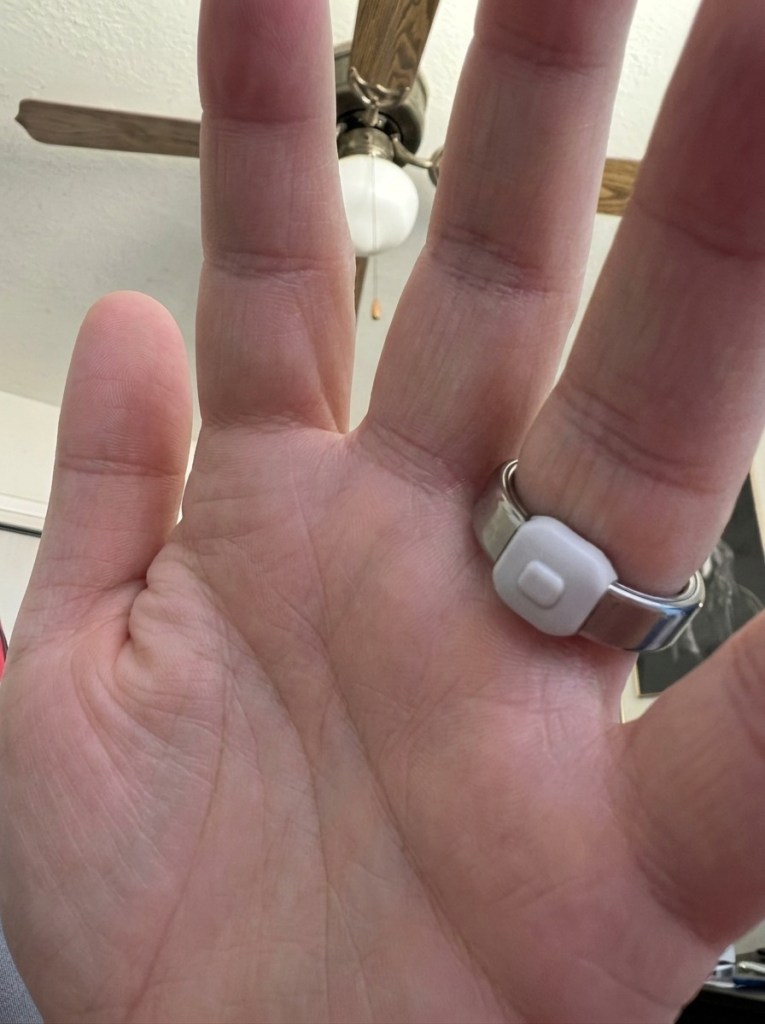
    And that’s really my only complaint. Otherwise the ring has held up well, and has performed better than I’ve expected.I don’t always wear it when I wash my hands or do yard work, but I do oftentimes, and have yet to have an issue.

    The Good

    Reminders

    The Index 01 excels at capturing reminders. All I have to do is press the button, bring my hand up to my mouth and say, “remind me at 12:30 to check the mail” and almost instantly it adds the reminder to the Pebble app.

    You can map reminders and notes to other apps, but the Pebble app works remarkably well as a way to get notified. I actually find how Pebble handles creating reminders much simpler and easier than using Tasks in Android. Even using Gemini to automatically create a new reminder is more of a hassle than just holding down the button and telling the ring to create one.

    Notes

    I honestly haven’t found a good use for notes. I create them, but I don’t have a great need for short-form notes. It’s also annoying to hold down the button on the Index 01 for more than a few seconds at a time.

    Questions

    When you double-click the button, you can ask questions. This is handy to get a quick, AI generated response for common questions. It’s another way to avoid using something like Gemini, which is great at answering questions, but can be a pain to invoke and wait for. Instead, the answer appears as a notification on your phone, and appears in a special section of the app along with your notes, reminders, shopping list, and other questions/answers.

    Shopping List

    Pebble has a special “Shopping list” category you can add items to, which is very handy.

    The Rest

    The Index 01 is sold as an open source ring that can integrate with other products and services, such as MCP. I haven’t tried to integrate it with anything except for Obsidian and Google Tasks. It works fine with Obsidian, but when Pebble adds reminders to Google Tasks, only the date and text come through, not the time. 

    A support rep from Pebble says this is a limitation of Google Tasks.

    Final Thoughts

    The only real problem I’ve had with the Index 01 is keeping track of it. If I don’t wear it all the time, I sometimes lose it. I once lost it outside, and another time in the recliner I normally sit in. Since it costs $75 (for now), it’s not something I would like to have to replace.

    But it’s useful, especially when opening my phone is something I shouldn’t do, like when driving. Or when I leave my phone in the house and I’m out in the yard. Then it’s invaluable, especially since my entire life is governed by reminders. I use them every day, all day, and I can’t remember a damned thing without them.

    I like the Index 01 so much I even ordered a watch from Pebble, the Pebble Time 2. It has a 1.5″ 64 color e-paper touch screen and stainless steel frame, and is much more low-tech than my current watch, the Pixel Watch 4. It also will have a substantially better battery life. I look forward to that and I don’t think I’ll miss the Gemini integration the Pixel offers.


  • I Don’t Miss Obsidian One Bit

    I Don’t Miss Obsidian One Bit

    When I found Obsidian it felt like a major score. OneNote by then was long in the tooth. Useful, yes, full-featured, absolutely, but also old and hard to work with. Plus, OneNote often creates ugly notes as you copy from various sources and paste into it. If you don’t take the time to format notes consistently, the fonts and other formatting get out of control quickly.

    Obsidian not only offered a gorgeous font that was consistently applied to every note, but notes are plain text (markdown), easy to back up, and formatting is as simple as typing a few characters.Then there’s plugins. Thousands of them. Able to handle just about any task Obsidian can’t handle on its own. 

    Problem is, it seemed like I needed a new plugin every week. Every single shortcoming in the application could be overcome by a simple download. This became tiring. Exhausting even.

    Suddenly I was a slave to an application instead of its master. What at first was simple, beautiful even, became ugly, tiresome, and I began to hate it.

    Yes, I hate Obsidian. I can’t stand using it anymore. 

    Then someone at work mentioned using Google Docs for notes. 

    I investigated and it appealed to me for a number of reasons.

    1. While Obsidian requires a plugin to allow semantic search, as long as what you store in Google Drive, which is where Google Docs is hosted, is in a format and structure it understands, it’s fully searchable with Gemini
    2. Similar to OneNote, and unlike Microsoft Word, a Google Docs document can have multiple tabs, or sections, which means one document can serve as the container for many different notes
    3. It’s all backed by Google, which is already my main provider of mobile operating system, e-mail, reminders, calendar events, and AI
    4. It gets me away from plugins, which are a blight on humanity as far as I’m concerned
    5. It offers the same sorts of formatting options as OneNote, but is less complicated

    There are a few downsides because it’s mostly web-based, at least on PC. But so far that hasn’t been an issue. And it has excellent native support on Android.

    In the end, it’s yet another note taking application, but it’s also more than that. Similar to Microsoft’s Office suite, I can create documents, spreadsheets, and presentations all in one place, and I no longer have to keep notes in a completely separate application.

    It doesn’t mean I’ve done away with a family subscription to Office 365. My daughter and I need all the cloud space it provides for our legacy documents, photos, and other files, and I still use Excel on occasion, but I’m finding Google Drive and Google Docs a welcoming new home for most everything else I do.

  • Cursor Continues to Save My Life

    Cursor Continues to Save My Life

    I’m a middle-aged man who has worked in the software development industry for 35 years and has been computing for 45. I’ve learned a lot, but I’ve also forgotten a lot. I can honestly say that something I work on one day, week, or month, is forgotten the next.

    That’s where Cursor comes in.

    Not only can it review, edit, and write code for me, but it can also search through my documents and find information I often forget. Case in point, I was revisiting some UI automation I had worked on in June, and although it had only been about six weeks, I had completely forgotten the name of a SQL script I had written to reset data.

    I knew I had written it, but wasn’t sure if I had completed it, if it worked, where it resided, or anything else about it, so I asked Cursor:

    “I created a sql script earlier this year to reset the document designer changes in the associated databases. look for references to that work”

    It found it!

    I opened it in Notepad++ and didn’t recognize it, and it was clear it had been generated by AI (most likely by Gemini). It took me a few minutes to prove it was the correct one, but when I found a copy of it in a virtual machine, it looked promising.

    I asked Cursor a follow-up question:

    “If I remember correctly, what the script DeleteDocumentLayouts (latest) does is wipe out all the documents and then you have to reimport them. Are there notes specifically mentioning that?”

    And it confirmed exactly that. Now I was sure this was THE script I had used successfully in June.

    This isn’t an isolated incident. There are numerous occasions I’ve relied on Cursor to search documents, to confirm that a branch has been merged into Github, and more. It’s not just a coding tool; it is a universal AI tool especially focused on activities having to do with the file system or code.

    When I get a chance I’ll write about how I used Cursor at home to vibe code a patching tool for The Sims 3. Initially it didn’t work quite right, so I installed Cursor on my daughter’s computer, and it helped troubleshoot and update the patcher and got The Sims 3 working. This is a notoriously difficult old video game that Electronic Arts has failed to patch for modern systems, but Cursor figured it out.

  • I Abandoned Obsidian for Google Docs

    I Abandoned Obsidian for Google Docs

    My note-taking journey started with Evernote in the early 2000s. Back then, there were no smartphones, so Evernote was only available as a desktop app. I soon switched to OneNote, which was superior in most ways. I stuck with the desktop version of OneNote for 20 years, although I tried a lot of different note-taking apps on mobile devices.

    A couple of years back I settled on Obsidian as my main note-taking app, but it didn’t take long to tire of it. While I loved the clean text, the solid markdown editor, and the expansive plug-in ecosystem, search was a mess, and using an AI plug-in like Gemini Scribe only partially solved the problem.

    In the end, I couldn’t reliably find my notes in Obsidian, and I got tired of using plug-ins as a band-aid for a fundamentally broken application. After hearing about a project at work to migrate notes from OneNote to Google Drive, I did some testing and found that Google Docs works well as a repository for my notes. And even better, it’s simple to reliably search those docs using Gemini.

    Also, Google Docs is fully integrated with Gemini, allowing me to leverage the technology as a writing assistant, something Obsidian doesn’t natively support. All of the solutions it offers are via plug-ins, which require creating API keys in platforms like Google AI Studio. 

    The big hurdle was determining how to migrate my existing Obsidian vault to Google Drive. For this task I used Cursor to write a Python script that leverages Google Cloud and the Google Docs API to seamlessly take the notes, convert the markdown and images, and create folders, docs, and tabs to correspond to every note.

    After some trial and error, I migrated all my notes into Google Drive, and I’m happy with the outcome. Using Google Docs on my phone isn’t quite as convenient as a phone app, but it works. And Google Docs works well on the desktop.

    If you’re interested in migrating your Obsidian vault to Google Drive and Docs, I open-sourced two scripts:

    Obsidian-Vault-2-GoogleDocs-Migration

    Obsidian-Folder-2-Google-Document-Migration

    The first script migrates an entire Obsidian vault to Google Drive. The second migrates only the .md files in a single folder to a folder in Google Drive.

    I created the second script because I want to continue creating notes in a single folder in Obsidian, and then migrate those notes to Google Drive. The script only moves notes that don’t already exist in Google Drive, and it creates a new doc for each new note.

    This differs from the first script. Its main focus is to take each folder of .md files from the vault and create a corresponding doc in Google Drive, with each appearing as its own tab. Folders in the vault that don’t contain files are still recreated in Google Drive if they contain subfolders with notes. 

    If you have questions about my journey, or about using either script, feel free to reach out.